
Eaglesoft / Patterson Imaging
Windows · Camera button
Use ProDENT Capture and select the matching imaging-software setup. Keep its capture window active and check that the photo is saved.


Save on cameras
Buy the same camera model: 2–4 units get 10% off; 5+ units get 15% off.
Quantities are counted separately for each camera model. PD760 and PD760 Pro are separate models, as are PD720 and PD780.
30% off one sleeve pack per camera with code PD-SLEEVES30-2026.
Once per customer in 2026.
PDC-A01 sleeves fit your ProDENT PD750 camera.
Prices shown before discounts.
Add your camera and sleeves to the cart.
Camera quantity discounts apply automatically at checkout and cannot combine with the sleeve offer.
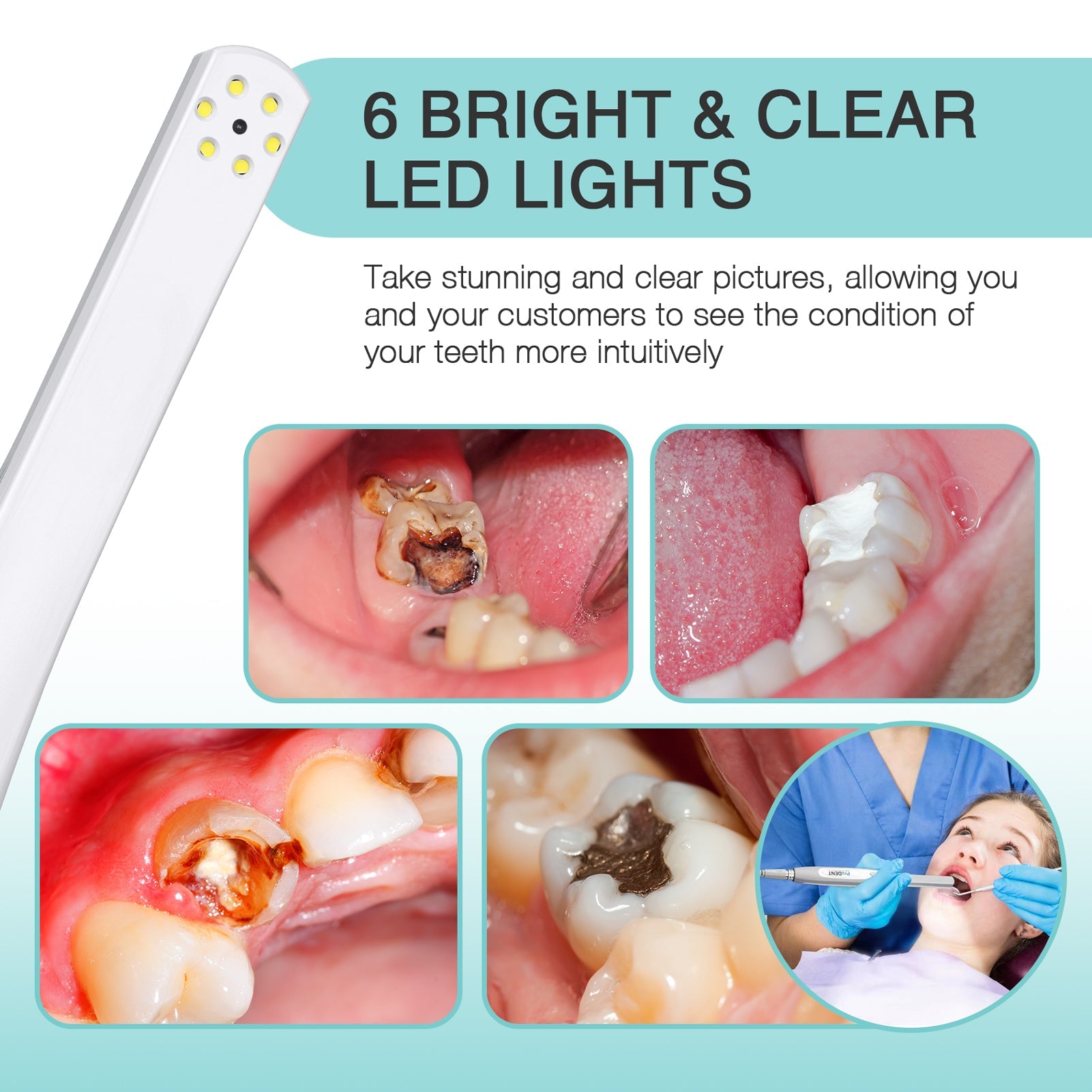
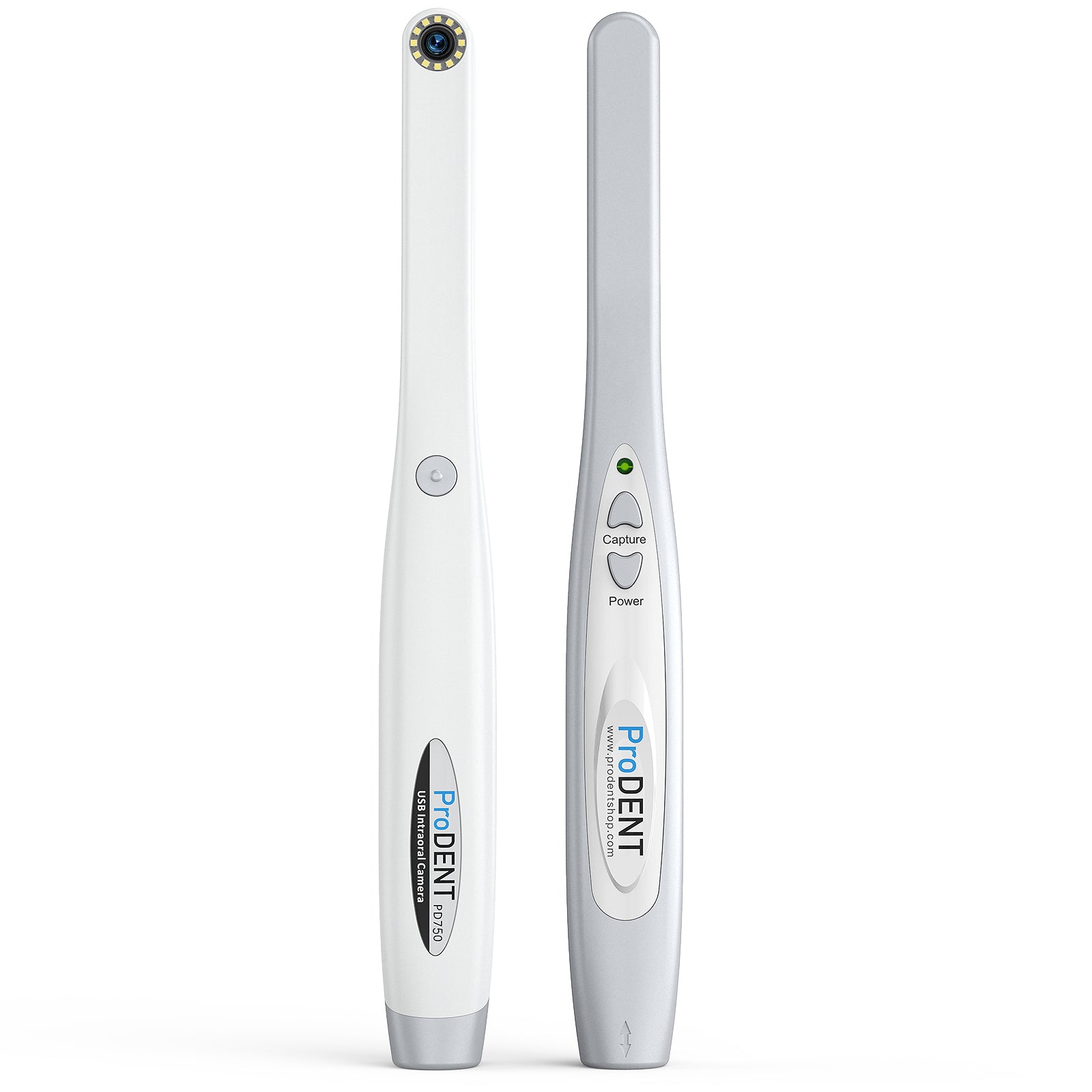
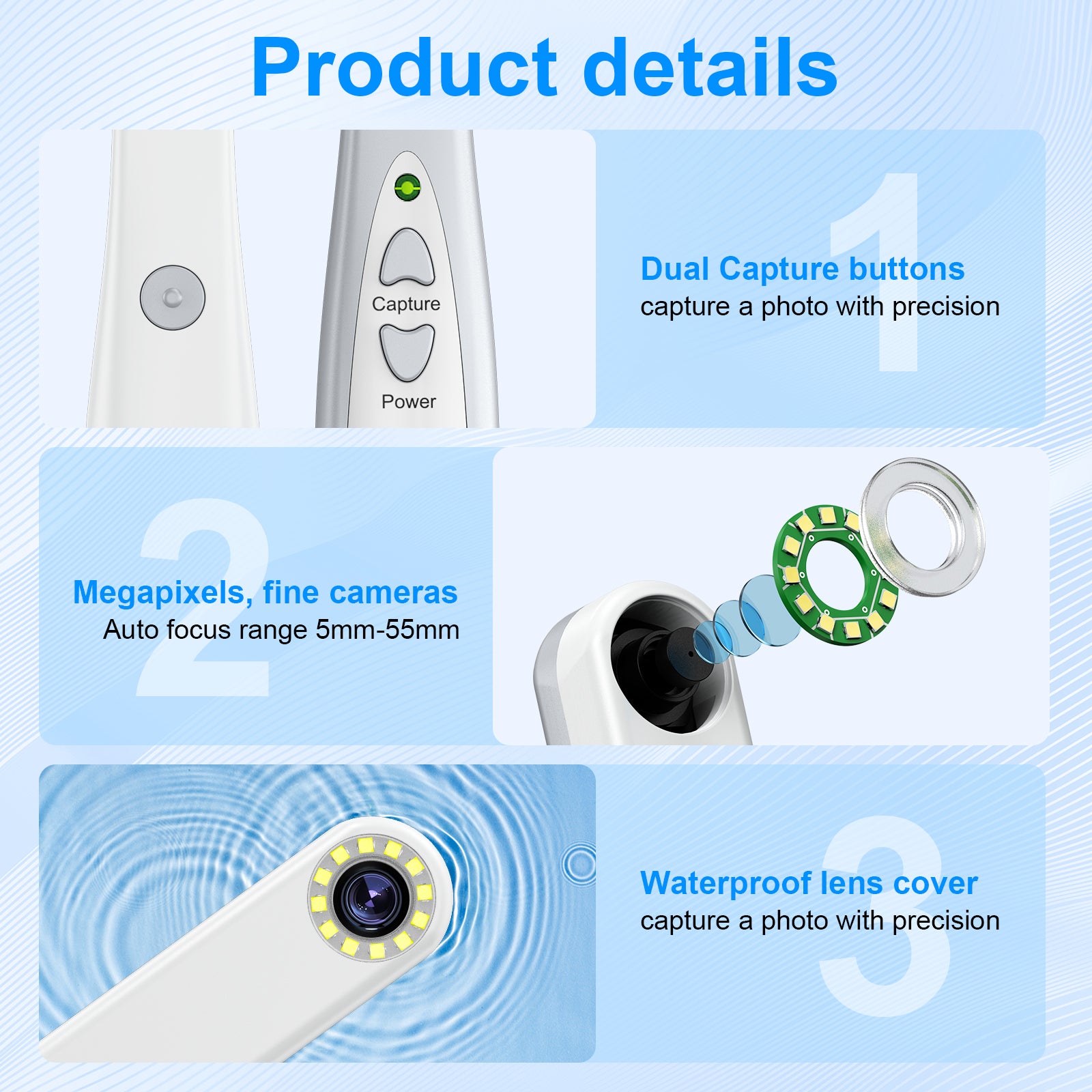
The ProDENT PD750 Intraoral Camera is an upgraded version of the PD740, featuring enhanced image quality and a redesigned camera head to minimize blurriness.
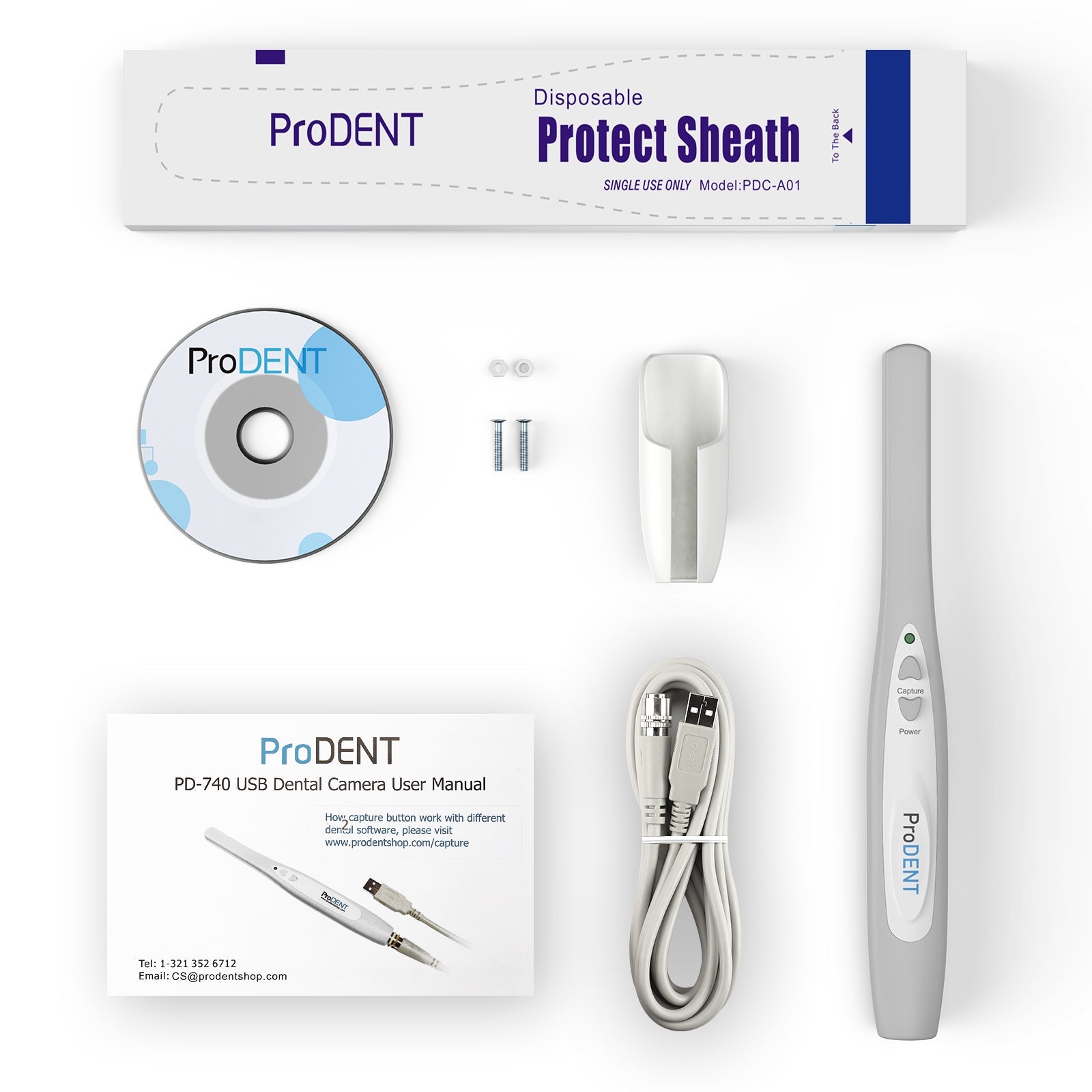
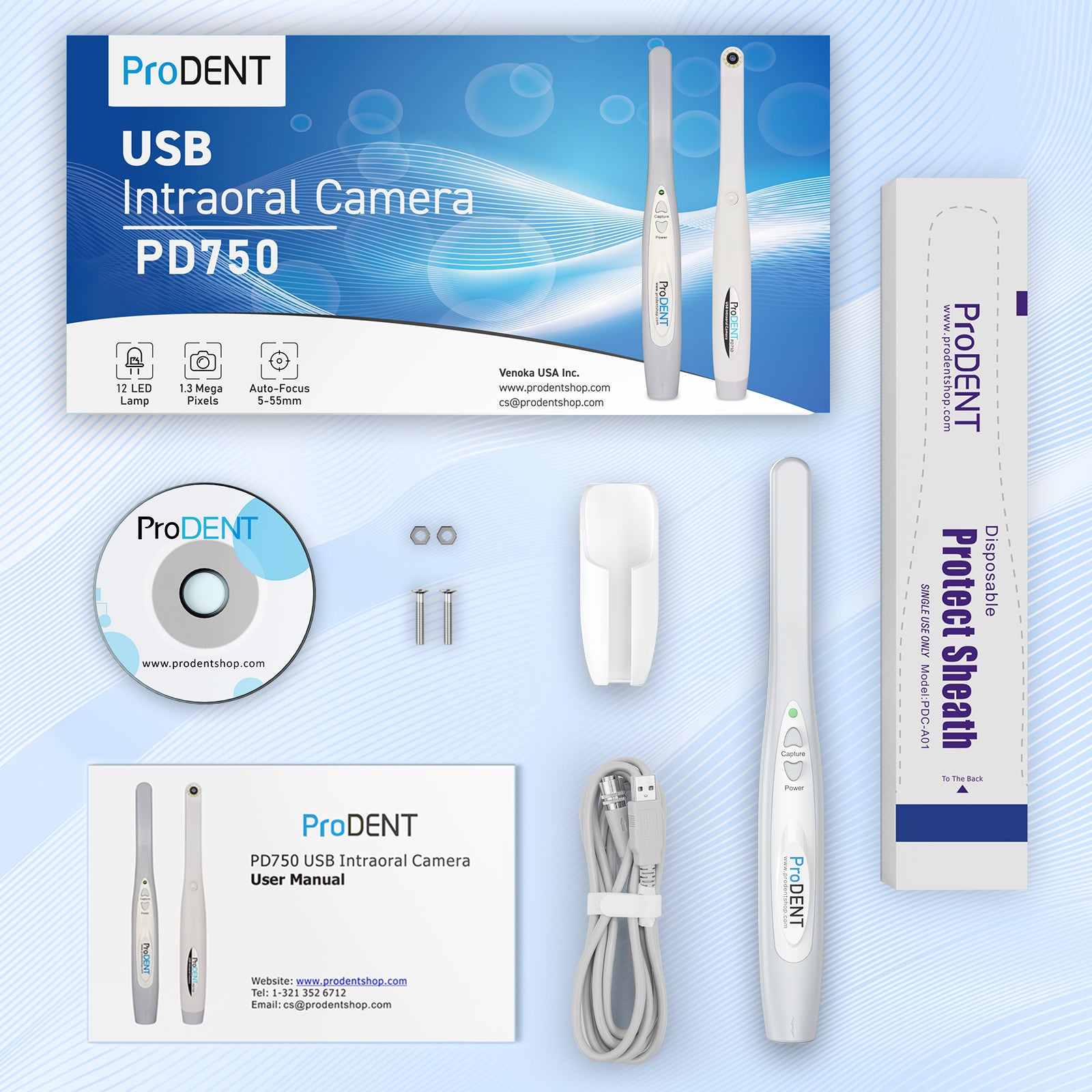
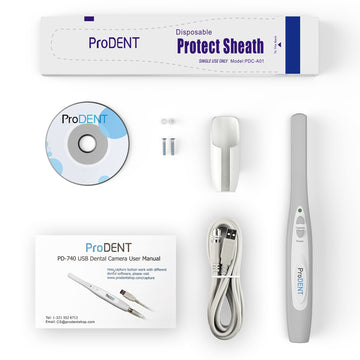
Package includes an intraoral camera handpiece, USB cable, 50 disposable protective sheaths, a magnetic wall holder, and software CD for easy setup.
Buying for multiple operatories? 20+ units ship free automatically — or request a bulk quote / invoice.
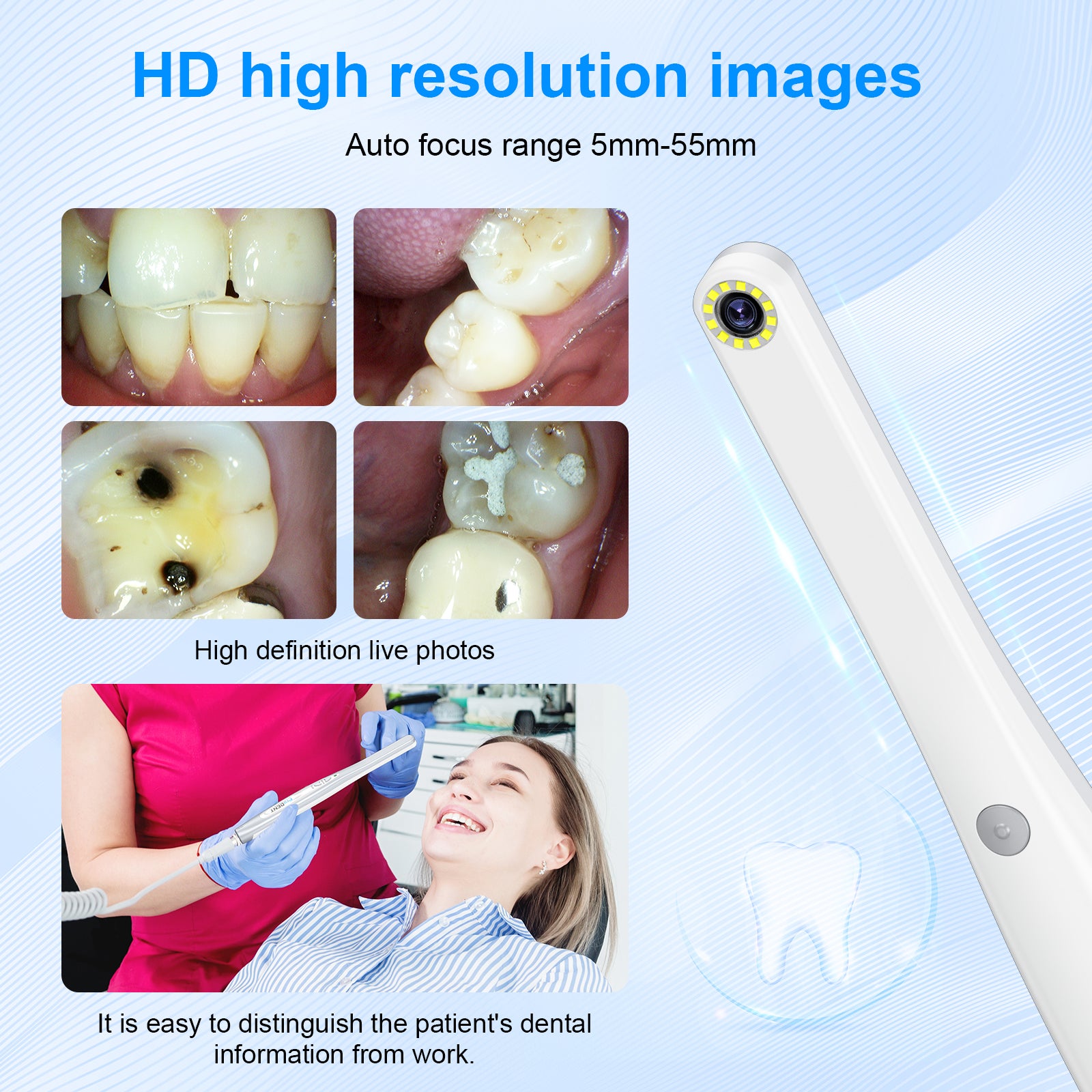
Example images captured with the PD750. Select a photo to view the full-size image.


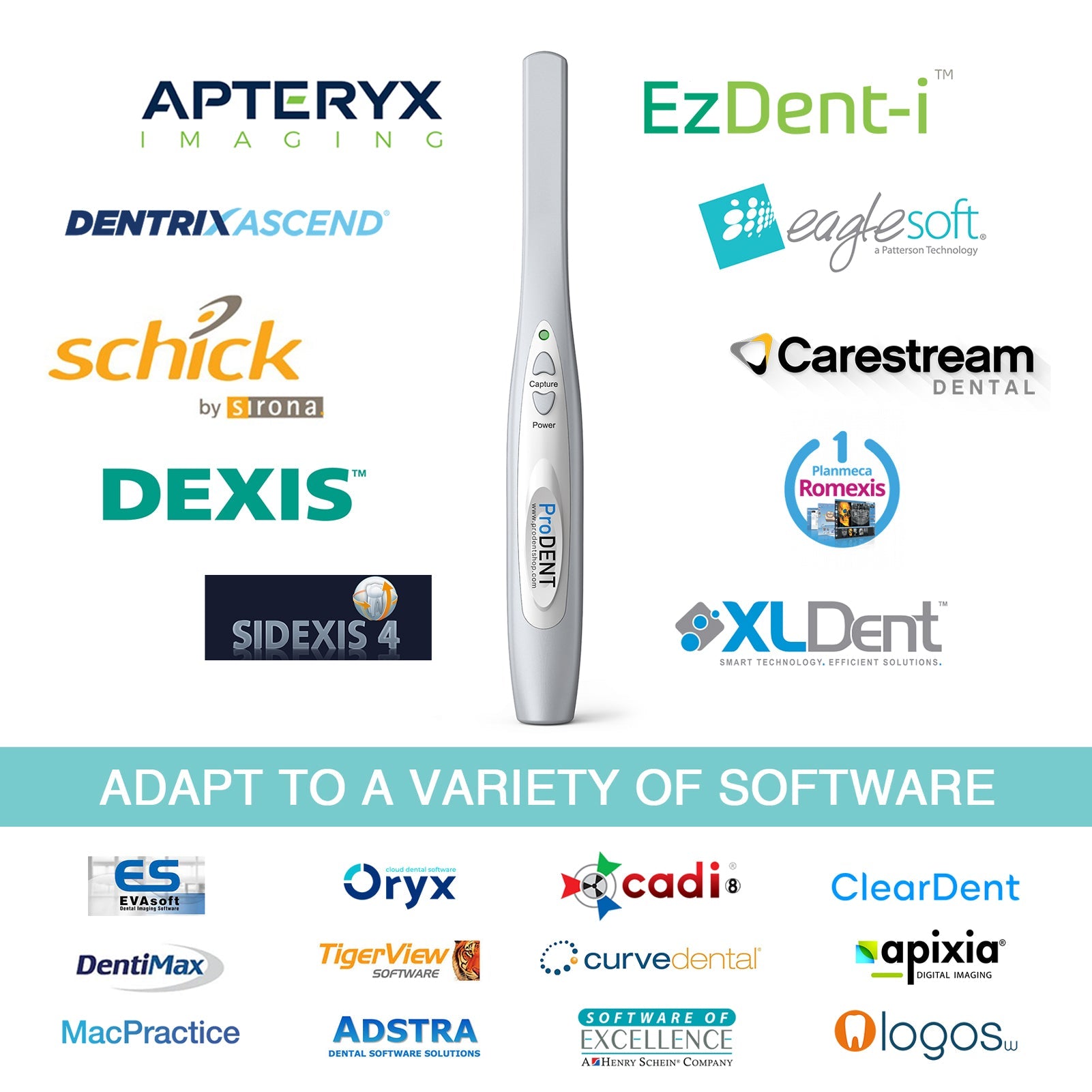
Find a setup guide for your dental imaging software, then follow the three steps below.
These are software-family setup resources. Confirm your exact software version before choosing a capture route.
No checked setup guide is listed for this name and computer choice yet.
Ask ProDENT Support with your camera model, operating system and version, and imaging software name and version.
Browse the setup guides below. Match your computer and camera model; a guide does not confirm every software version.
Windows · Camera button
Use ProDENT Capture and select the matching imaging-software setup. Keep its capture window active and check that the photo is saved.
Windows · Camera button
Follow the DEXIS capture-window and ProDENT Capture settings. Confirm the instructions for your DEXIS release.
Windows · Camera button
This guide is for Kodak KDI / Carestream Imaging. Check your software version and the STV camera module required by the guide.
Windows · Camera button
Select the video source in XrayVision, then follow the capture-button settings for your software release.
Windows · TWAIN · PD760 Pro / PD780AU
Install the ProDENT TWAIN driver, then select the ProDENT source in your TWAIN acquisition window. Confirm your Open Dental version and required capture workflow.
Windows · Camera capture guide
Follow the camera/video-stream steps, allow camera access when prompted and save the captured images in Praktika.
Windows · TWAIN · PD760 Pro / PD780AU
If your workflow uses TWAIN, use the ProDENT Windows driver and confirm your Praktika version.
Mac · Camera button
Use the MacPractice preset in Intraoral Camera Capture. Complete guided setup and Accessibility permission; keep MacPractice on its capture screen. MacPractice provides preview and saves the image.
Guide model list: PD740, PD750, PD760, PD760 Pro, PD720 and PD780. Ask us to confirm PD780AU on Mac.
Mac · Camera button
Use the Oryx preset in Intraoral Camera Capture. Complete guided setup and Accessibility permission; keep Oryx on its capture screen. Oryx provides preview and saves the image.
Guide model list: PD740, PD750, PD760, PD760 Pro, PD720 and PD780. Ask us to confirm PD780AU on Mac.
A listed guide is a setup resource, not approval for every camera, computer or software version. Confirm your exact setup with ProDENT Support.
Shipping cost is based on weight. Just add products to your cart and use the Shipping Calculator to see the shipping price.
Returns within 30 days of the order date on regularly priced items in new, saleable condition with original tags attached. Customer pays return shipping; a 25% restocking fee applies after 30 days. Conditions apply — full return policy.